

The highlight of Apple’s iOS 27 is Siri AI. The new Siri is a marked improvement over the old and often fallible Siri Classic. But to use Siri AI, your iPhone must support Apple Intelligence. And that requires an iPhone 15 Pro or higher.
Does this mean those of you with older iPhones shouldn’t bother upgrading? No, even without all the AI superpowers, iOS 27 still offers a ton of cool and useful features. And although Siri AI and Apple Intelligence require at least an iPhone 15 Pro, iOS 27 itself supports all models, starting with iPhone 11 and iPhone SE.
Also: Your iPhone just received an anti-scam upgrade hidden in iOS 27: how to activate it
For those of you who have an older iPhone that can be upgraded to iOS 27, here are seven features that make the new version worth installing.
1. Customize the Liquid Glass effect
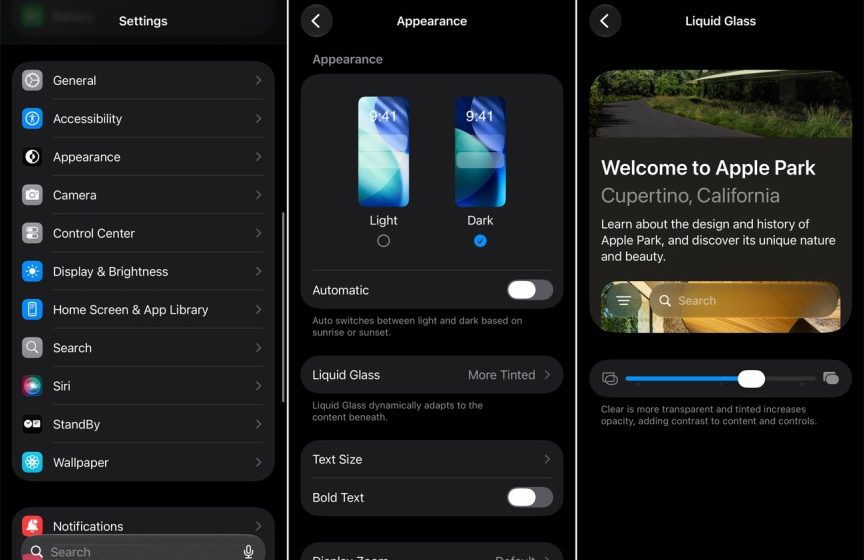
Painting elements on your screen with a more translucent appearance, Liquid Glass has been a controversial feature since its debut with iOS 26. Some people love it; others hate it. I tend to be in the middle. Whatever your feelings about Liquid Glass, iOS 27 gives you more control over it with a handy slider you can position wherever you want.
Also: After you upgrade to iOS 27, do these 5 things first
To try this, go to Settings, select Appearance, then tap Liquid Glass. Moving the slider handle all the way to the left provides a complete translucent and transparent effect. Moving it all the way to the right eliminates the effect, creating a tinted look. When you move the handle, you can see the difference in the preview window to gauge how it will look. I usually place it somewhere between the two extremes.
 Screenshot by Lance Whitney/ZDNET
2. Pin your favorite camera controls
The Camera app offers a variety of controls you can set, including flash, timer, aspect ratio, exposure, styles, filters, and night mode. Swiping up from the bottom or tapping the six-dot icon displays the controls menu. But finding the right command in this menu can take time, especially if you’re trying to take a quick action photo. I found this process frustrating as it sometimes causes me to miss the shot. With iOS 27, you can now pin your favorite commands to the top for easier access.
Open the Camera app and set the mode to Photo. Swipe up from the bottom or tap the six-dot icon to display the commands menu, then tap the Edit button at the top left. You’ll probably see at least a few controls already pinned to the top of the screen. To remove a specific control, tap its minus sign. To pin other controls, simply tap the highlighted ones. By adding and removing controls in this way, you ensure that only your favorites appear at the top. When finished, tap Done. You can then easily tap any of the pinned commands for quicker access.
Also: iOS 27 drains your iPhone battery? 7 Ways to Extend Battery Life
Controls also vary depending on camera mode. This means you can pin different controls for each mode, including Photo, Portrait, Video, Cinematic, Slow-Mo, and Time-Lapse.
 Screenshot by Lance Whitney/ZDNET
3. Add more effects to a slideshow
You have long been able to create a slideshow in the Photos app based on an album or collection of photos. But with iOS 27, you can beautify your slideshow by changing the overall transition, the duration of each photo, and the music. I sometimes create and share slideshows of photos I take when my wife and I travel, so I like these new options.
Also: 5 hidden iOS 27 upgrades that make a big difference — and why I love them
Open the Photos app and open a specific album or collection, or select a group of individual photos. Tap the ellipsis icon at the top and choose “Start Slideshow.” Once the slideshow starts, tap the screen and select the Customize button. In the menu, tap the first option for “Transition & Duration”.
 Screenshot by Lance Whitney/ZDNET
Select the drop-down menu for Transition and you can change the mode to Cut, Crossfade, Fade to Black, Exposure Bleed, Pan, Scale, Rotate or Erase. Next, move the Duration slider handle to set how long your slideshow will run. Then tap the time of each photo and move that handle to determine how long each photo should stay on screen. Once finished, tap the check mark at the top.
 Screenshot by Lance Whitney/ZDNET
To set music, tap Personalize again, select Music, then tap Choose Song. Browse the categories and select the song you want to accompany your slideshow. Note that some songs require an Apple Music subscription. When finished, tap the check mark. Press the Play button to view your slideshow with the music you selected.
 Screenshot by Lance Whitney/ZDNET
4. Save a video frame as a still photo
Have you ever taken a video of a scene and wished you had taken photos of it too? I’ve done it several times. You can now save any frame from a video as a still image.
Also: Your iPhone’s action button can trigger an entire folder of shortcuts in iOS 27 – here’s how to do it
Open the Photos app and start playing a specific video. Pause the video when it reaches a scene you want to save as a photo. Tap the ellipsis icon at the top and choose “Save video frame as photo”. Return to your library. You will now be able to open this frame as a still image to edit it or use it as you would any other photo.
 Screenshot by Lance Whitney/ZDNET
5. Create and send a drawing in Messages
Another cool new feature in iOS 27 taps into your drawing skills. You can now draw something directly in the Messages app and send it to the person on the other end. I’m not really an artist, but I appreciate this new method of sharing.
To try, open Messages and start or resume a text. Tap the plus icon and select Drawing from the menu. Tap the pen icon at the bottom to open the full palette. You can then select a specific pen tool. Tap any tool to bring up another menu where you can vary the thickness and strength of the pen.
 Screenshot by Lance Whitney/ZDNET
Tap the circle on the right to change the color. You can also tap the plus icon to open a menu where you can add a sticker, text, signature, shape, or magnifying glass. Tap the Eraser tool to erase anything you don’t like. Tap Undo to undo your last action. After creating your masterpiece, tap the check mark, then tap the up arrow to send the text to the other person.
 Screenshot by Lance Whitney/ZDNET
6. Easily add or edit a calendar event
With iOS 27, Apple has strengthened the calendar app screen through which you add or edit an event. You will see more information on the screen at once. The various details are now organized under specific headings. Additionally, the time no longer indicates a specific city but rather a time zone, which makes a lot more sense. This alone is worth the upgrade for me, because sometimes an event I would create would list the wrong city at the moment, forcing me to manually change it.
Also: Your iPhone just received an anti-scam upgrade hidden in iOS 27: how to activate it
To check this, open the Calendar app and create or edit an event. You can now more clearly add or edit relevant details, such as name, location, guests, start and end times, and alerts.
 Screenshot by Lance Whitney/ZDNET
7. Smooth transition from Wi-Fi to cellular
Have you ever had connection issues because your iPhone is stuck trying to figure out when and how to switch from Wi-Fi to cellular? This happens to me frequently when I’m leaving my house to get in my car and trying to get directions. The Wi-Fi signal is starting to weaken, but handoff to cell won’t work until I move away.
With iOS 27, Apple promised smoother transitions between Wi-Fi and cellular. I’ve tried this by setting driving directions as soon as I get in my car after leaving home. So far I haven’t experienced the connection issues that I’ve had in the past.
Also: iOS 27.0.1 released: Apple fixes annoying iPhone 18 Pro restarting and freezing issues
You don’t need to do anything to configure this, as the transition happens automatically. Try it the next time you leave your home or another Wi-Fi-enabled area to see if switching to cellular is easier and faster.
 Screenshot by Lance Whitney/ZDNET
See full bio
Gn tech