
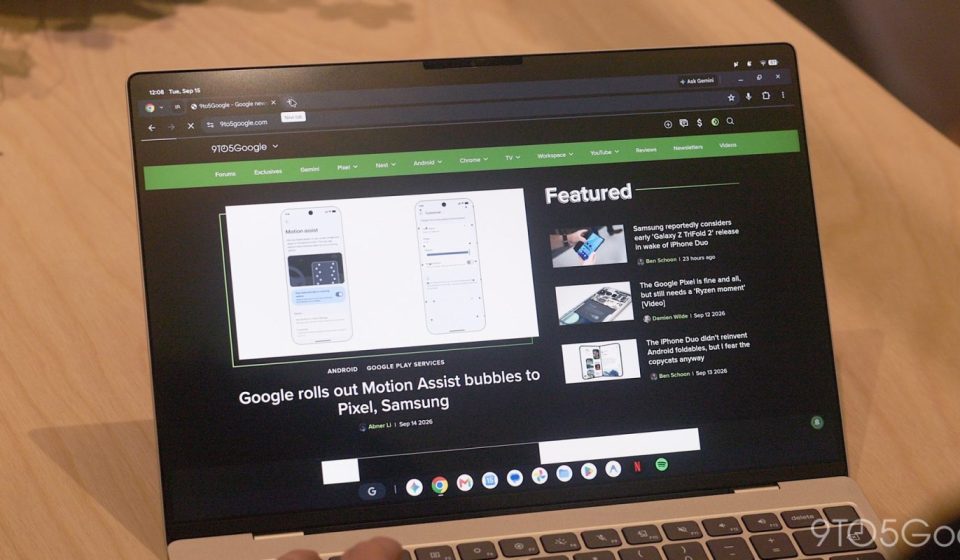

Chrome 157 was widely rolled out last week and Google is now sharing the full changelog for Googlebook OS.
There are five new features for the browser in version 157:
- Automatically expand vertical tabs on Hover: Hovering over a collapsed vertical tab rail with a mouse or trackpad now temporarily expands it into an overlay so you can read full tab titles, switch tabs, or manage groups, and retracts when you move your cursor away. This is enabled by default and can be enabled or disabled in Settings > Appearance > Tab Position > “Automatically expand tabs on hover” or by right-clicking on the vertical tab rail.
- Resizable vertical tab bar: You can now manually resize the vertical tab bar to display longer page titles without truncation, and Chrome remembers your custom width across browser restarts and new windows (supported when “Automatically expand tabs on hover” is disabled).
- Direct URLs and backward/next history for settings: Individual Chrome Settings subpages now have direct web addresses (such as chrome://settings/appearance or chrome://settings/privacy) that you can enter, bookmark, or directly link to. Navigating between Settings subpages also works with Chrome’s Back and Forward buttons.
- Tab sharing controls bar: When sharing a browser tab during video calls (like Google Meet), Chrome now displays a persistent control bar at the top of the window to “Stop sharing” or “Share this tab instead” from any tab.
- System File “Save As” Dialog Box: The “Save As” system file picker is now enabled by default for explicit menu save actions (such as “Save Link As…”, “Save Image As…”, and “Save Page As…”), allowing you to rename files and choose a destination folder, including Google Drive or external storage.
This is followed by 22 improvementsespecially for the bookmarks bar, vertical tabs and address bar. Of note is the “desktop standard text editing menu” when you right-click on the address bar.
- Bookmarks bar context menu: Context menus now open correctly when right-clicking on the bookmarks bar or bookmarks folders.
- Full screen bookmarks bar: Switching tabs in full screen mode while vertical tabs are enabled now keeps the bookmarks bar visible.
- Bookmarks bar during screen sharing: Clicking on favorites items in the favorites bar now responds normally when presenting or sharing your screen in Google Meet.
- Pinned Tab Hover Cards: Hovering over a pinned tab always shows the tab preview hover card, even when a vertical scrollbar is visible.
- Vertical Tab Scrollbar Alignment: Scrollbar spacing aligned between pinned and unpinned vertical tabs to avoid visual jumps when scrolling through long tab lists.
- Settings subpages on theme change: Changing the system appearance between light and dark modes now allows you to stay on your current Chrome Settings subpage instead of resetting the main Settings menu.
- Launcher “New Window” shortcut: Right-clicking or long-pressing Chrome in the app launcher or taskbar now displays a “New Window” shortcut, including when incognito mode is disabled by company policies.
- Selecting an External Google Slides Monitor: Restored the external monitor switcher in Google Slides presentation settings for dual-screen presentations with presenter view and presenter notes.
- Close third-party login prompts: Clicking the close button (X) in third-party Google login prompts (such as on Reddit) now cleanly closes the dialog without freezing.
- Partial translation in PDFs: Selecting text in PDFs opened in Chrome tabs now displays the Partial Translation option in the context menu.
- Opening downloaded PDFs: Clicking on a downloaded PDF in Chrome’s download manager now opens it directly in a new browser tab instead of an external system viewer.
- Media controls during picture-in-picture: Opening a Picture-in-Picture video window no longer causes the media controls pop-up in the toolbar to close early.
- Web application installation window: Installing a window’s single open tab as a web app now opens a New Tab page instead of leaving a blank browser window.
- Web app back navigation: Newly opened web app windows now start only with the app history, so the back button no longer returns to pages visited before the app was installed.
- Multiple web applications on the same site: Installing a web app from a site no longer causes other web apps on that same site to show as “Already Installed” or fail to open.
- Address Bar Copy Selection: Right-clicking highlighted text in the address bar now opens copy options without clearing your URL selection.
- Shift+Up/Down text selection in address bar: Pressing Shift+Up or Shift+Down while typing in the address bar now extends the text selection across multiple lines instead of selecting search suggestions.
- Address bar context menu: Right-clicking anywhere in the address bar now displays the standard desktop text editing menu.
- Ctrl+L Full URL selection: Pressing Ctrl+L now reveals and selects the full web address, including URL parameters.
- Suggestions in the address bar: Clicking outside the address bar now cleanly closes the suggestions drop-down so that the search box doesn’t get stuck open.
- Contextual Search Privacy Notice: Contextual search now displays a non-blocking privacy notice instead of a pop-up dialog that interrupts your workflow.
- Stability fixes: Stability improvements have been made to browser extensions, keyboard shortcuts, and managed browser policies.


FTC: We use automatic, revenue-generating affiliate links. More.

Gn tech